
Fill the yellow places
AI never makes up names, dates or events. Where it needs a real detail from you, it leaves a question in [brackets] — the app shows it in yellow. Filling these is what makes the book true and complete.
-
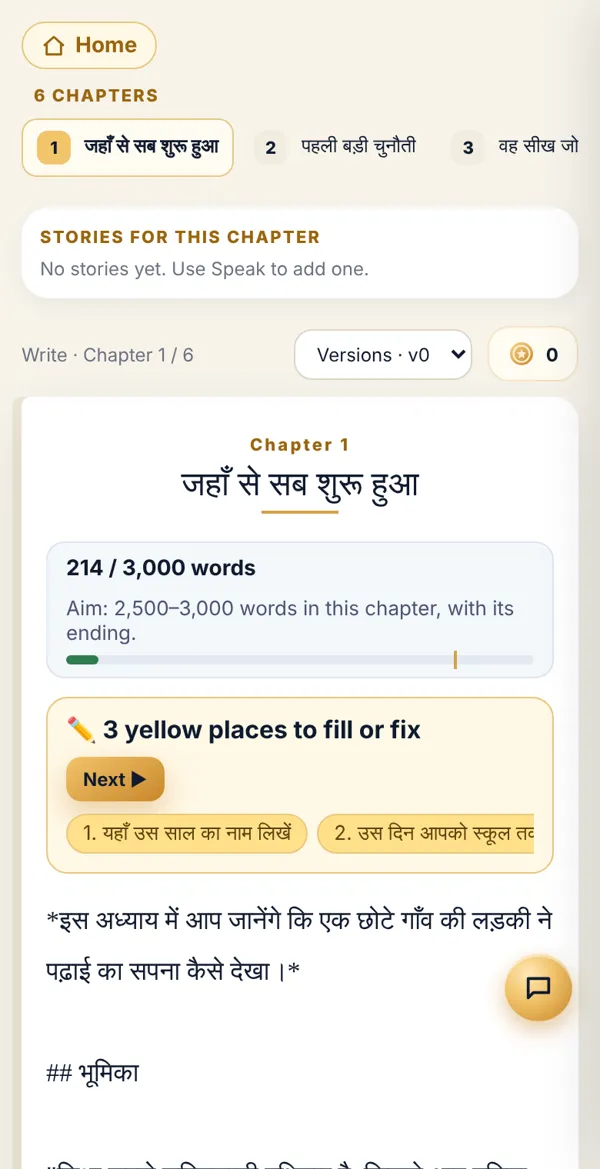
Open the chapter. If there are yellow places, a bar appears at the top: ✏️ 3 yellow places to fill or fix — with a short name for each below.
-
Tap Next ▶. The app jumps to the first yellow place and selects it.
-
Delete the whole question including the [brackets] and type the real detail instead. For example, replace [write the year here] with in 2004. You can speak instead of typing.
-
Tap Next ▶ again and repeat. The count goes down.
-
When all are filled, the bar says No yellow places left. Well done! Now tap Save.
Done? Check it like this
Section titled “Done? Check it like this”The reading view shows no yellow line and no [brackets].
Stuck?
Section titled “Stuck?”- It stays yellow while I type: That’s on purpose, so you can see where they are. The colour goes once the [ ] are removed.
- No yellow in the reading view: The reading view is only for reading. Tap Ask for changes to go back to the writing view and fill them.
- Too many yellow places: Fill them together in a meeting with your mentor — they ask, you speak.
Related articles
Section titled “Related articles”Thank you! This helps us improve the guides.