
Cover approval: author, guests and team
So that everything on the cover is correct and agreed, each person gets a personal link. The order is always the same: author first, then guests.
For the team: make and send the proof
Section titled “For the team: make and send the proof”-
In Coach Desk open Cover approvals and tap + New cover proof. Enter the book title, author name and the lines the author must check (one per line), then Create.
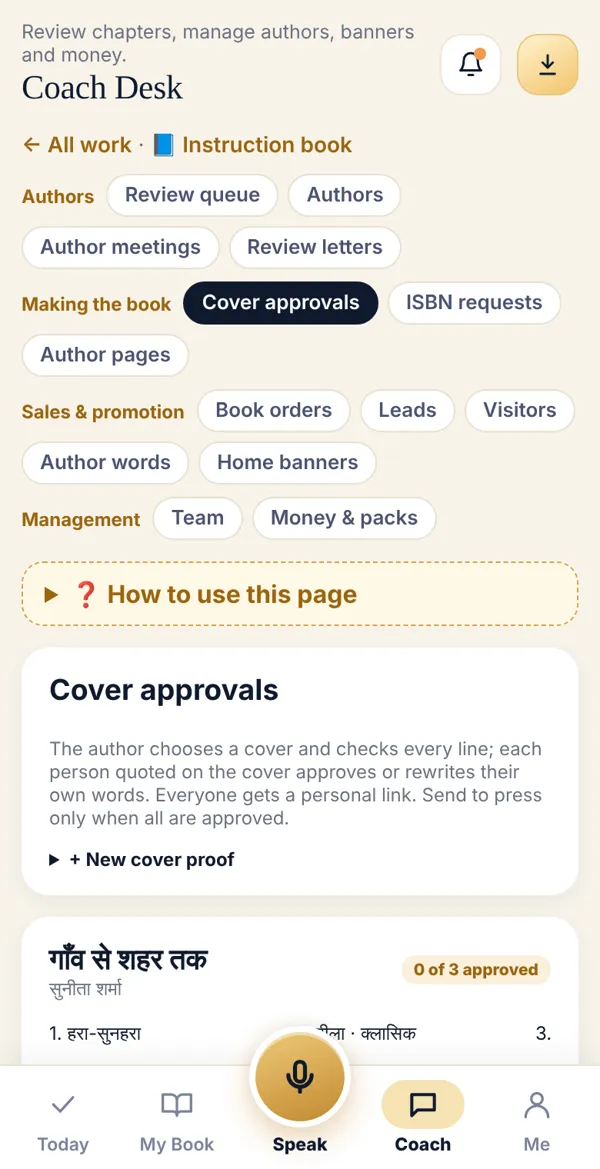
-
Use Add a cover option (picture) for each option and give it a name.
-
Use Add a person quoted on the cover for each guest: name, their words as they will print, name and title, place (front/back) and WhatsApp number.
-
Next to the author, tap Send on WhatsApp. A congratulations message is written for you and opens in WhatsApp.
-
The guests’ Send on WhatsApp turns on only after the author chooses (until then it says Send after the author approves the cover). Guests get a respectful permission message.
What the author sees
Section titled “What the author sees”Congratulations first, then all the cover options. The author picks one, marks each line OK or Change, signs with their name and sends.
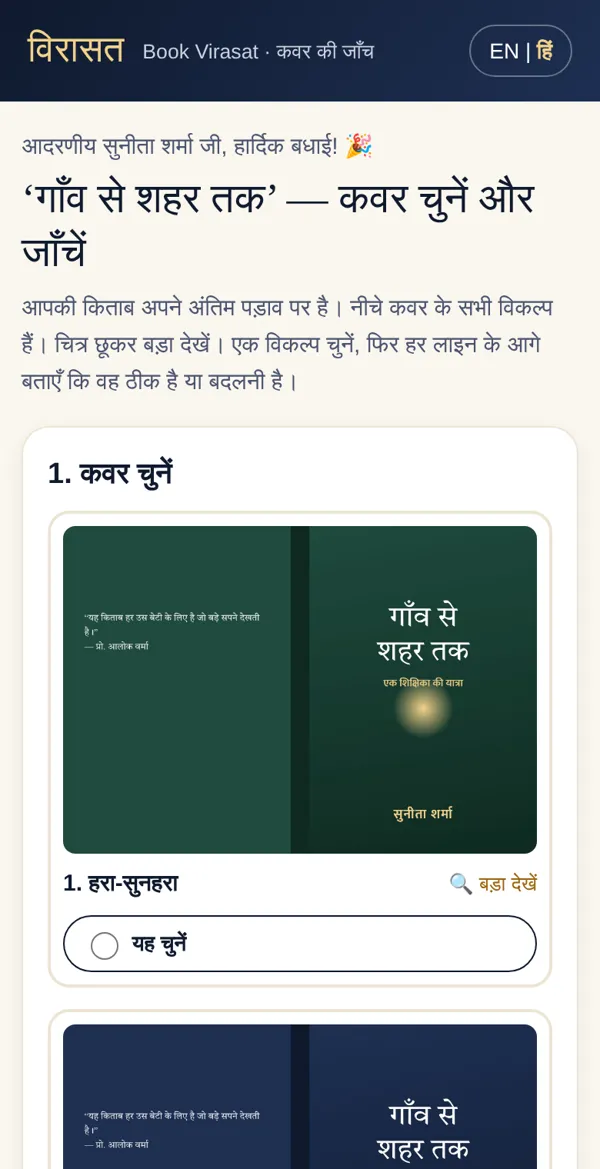
What a guest sees
Section titled “What a guest sees”Only the one cover the author chose, and their own words as they will print. They can choose I give permission, print as is, or I’d like to change the words and write their own.
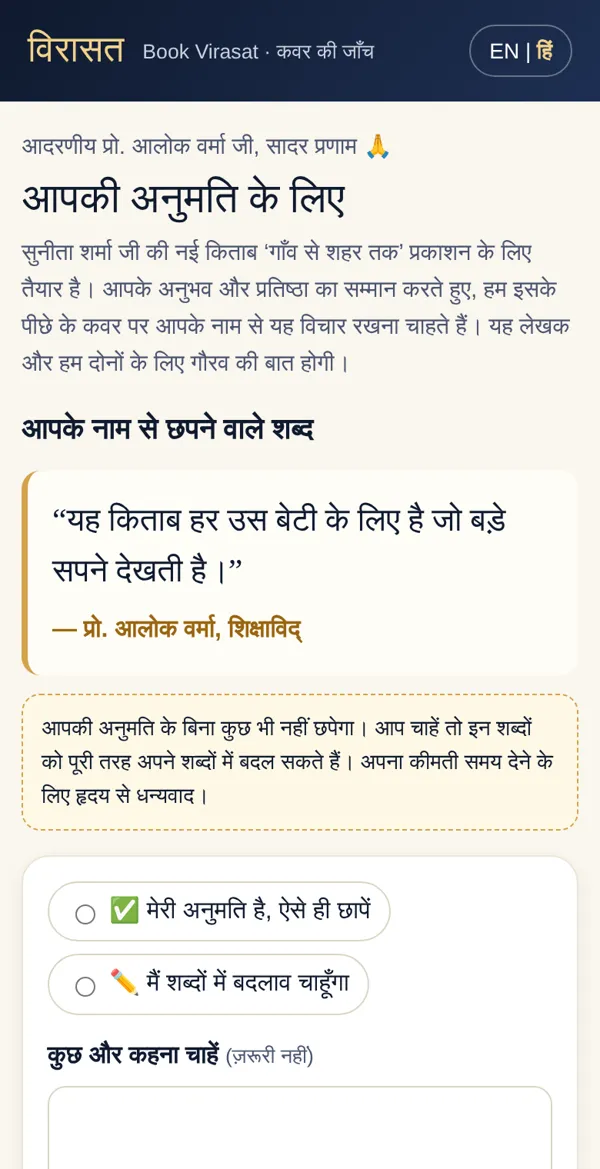
At the end
Section titled “At the end”Coach Desk shows for each person: opened or not, and their answer. When everyone says yes it shows Ready for press: everyone approved.
Done? Check it like this
Section titled “Done? Check it like this”In Coach Desk → Cover approvals, the book shows “Ready for press”.
Stuck?
Section titled “Stuck?”- A guest changed their words: Their new words show in Coach Desk. Tap Use their words — their approval is then asked for again.
- The link doesn’t open: Check the whole link was copied. Send again with Copy link.
- The author picked the wrong cover: They can open the same link again and change it, until the proof is closed.
Related articles
Section titled “Related articles”Thank you! This helps us improve the guides.