
Read a chapter, approve it and download the PDF
Before the book is printed, the author reads every chapter in full. The reading view looks just like a book page, so you see it as a reader would.
-
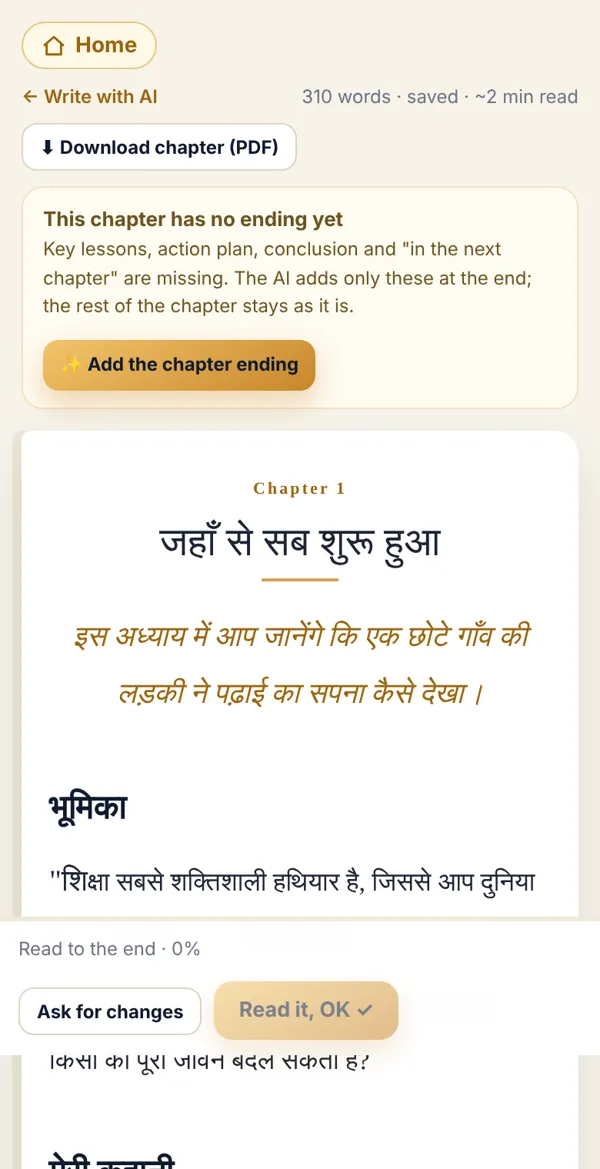
On the writing screen tap 📖 Reading view, or open the chapter waiting to be read from the home page.
-
Read calmly to the end. The bar at the bottom shows how much you’ve read.
-
Want to change something? Tap Ask for changes — you go to the writing view. Change it, save, and read again.
-
All good? After you reach the end and a little time has passed, the Read it, OK ✓ button turns on. Tap it. 🎉
-
Need a PDF (to print or share)? Tap ⬇ Download chapter (PDF) at the top.
Done? Check it like this
Section titled “Done? Check it like this”A green ✓ Saved badge appears at the bottom, and the app suggests the next chapter to read.
Stuck?
Section titled “Stuck?”- The OK button is greyed out: You haven’t reached the end, or the reading time isn’t over. Check the time on the bar.
- Found a mistake after approving: No problem. Tap Edit and fix it. Your mentor checks it too.
- Hindi letters look broken in the PDF: Open the PDF in Chrome or Safari; some old PDF apps have trouble.
Related articles
Section titled “Related articles”Was this guide helpful?
Thank you! This helps us improve the guides.